
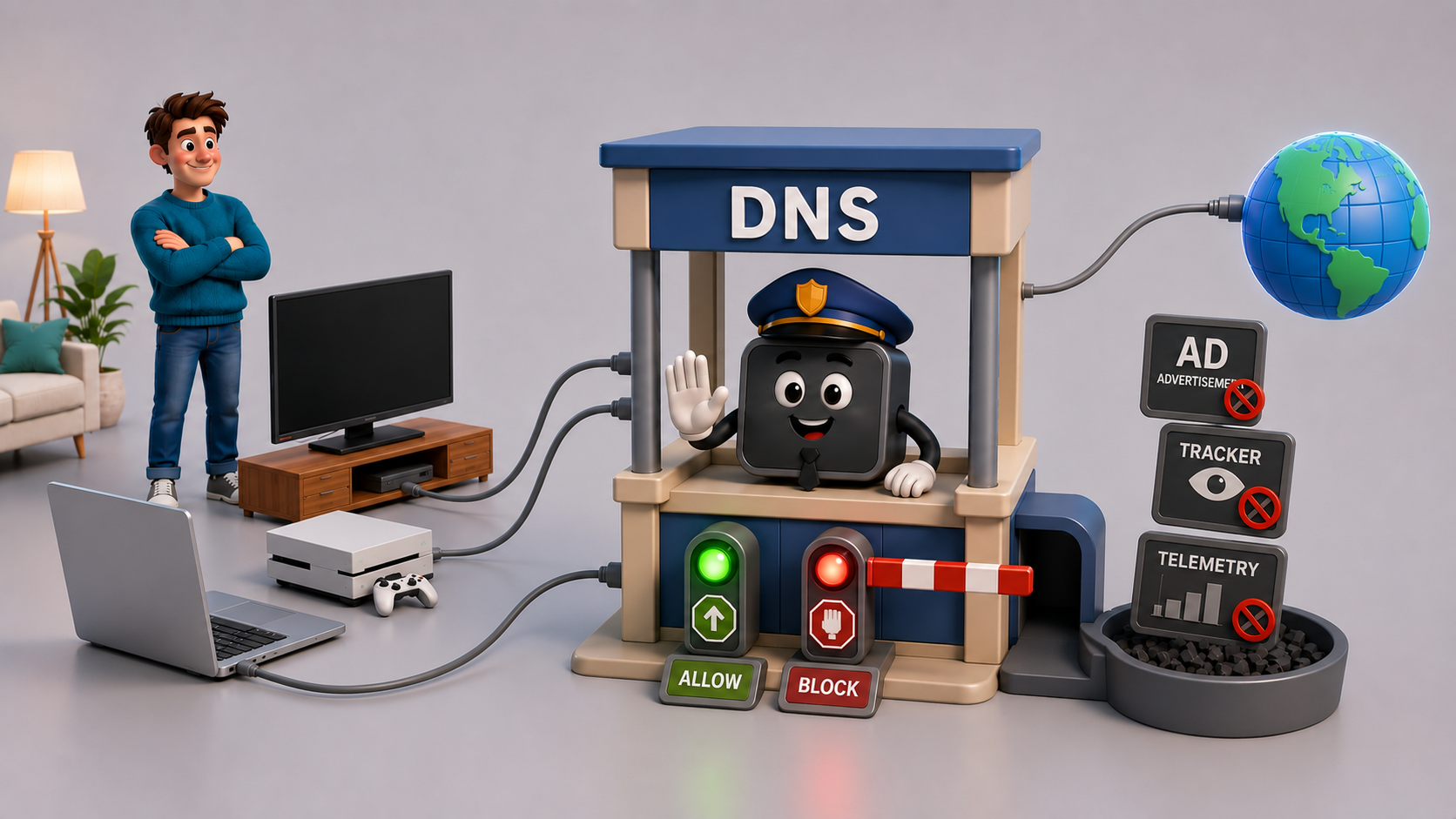
Blocking ads is most often a matter of extensions, installed browser by browser, device by device. There is a more systematic approach: filtering at the network level, for every device at once, by leaning on a fundamental building block of the internet, the DNS. This article describes how it works, then the ways to take advantage of it, from a public DNS to your own local DNS, self-hosted with Pi-hole.
In shortThe DNS is the internet’s directory: it translates a domain name (mansec.ch) into a technical address (an IP). Ads are almost always served from separate domains, which have to be resolved in that directory. A filtering DNS plays the role of the directory, but refuses to hand out the address of ad domains: with no address, the browser cannot load the ad. You can turn to a public DNS (AdGuard, Mullvad…) or host your own local DNS with Pi-hole. The method is effective and covers the whole network, but it does not block everything: some ads get through, and the setup can be bypassed.
The DNS, the internet’s directory
Every website has two identities. A name, readable by a human, like mansec.ch. And a technical address, called an IP, for example 203.0.113.42, the only one that lets you reach a machine across the internet.
This is the principle of a directory. You know the name of a business, but to reach it you first have to find its details: you open the directory, look up the name, and get the address.
The DNS (Domain Name System) is that directory, at the scale of the internet. When you type mansec.ch, your device asks the DNS: “what is the address of mansec.ch?”. The DNS returns the IP address in a fraction of a second, and the browser can finally connect. The operation repeats on every visit.
A web page is not a single address
A modern web page is never served by a single domain. The text comes from the site you are visiting; the images, fonts, videos, analytics and above all the ads often come from other domains, operated by other companies.
Each has a name, and every name goes through the directory first. An ad banner is not drawn by the site you are reading: the browser fetches it from an ad domain, which it must resolve like the others. Before displaying an ad, it therefore asks the DNS for its address, and that is the moment we intercept.
The idea: don’t hand out the address
If the directory refuses to give the address of an ad domain, the browser has nowhere to connect: the ad is never downloaded. A welcome side effect: what isn’t loaded doesn’t consume bandwidth, and pages display faster, especially on mobile.
The whole principle of DNS blocking fits in this diagram: the same request, with and without a filter.
In practice: adopting a filtering DNS
The mechanism is the same everywhere: a DNS that, for each domain requested, compares it against a blocklist of advertising and tracking, and refuses those that appear on it. That leaves choosing one: you can go through an existing service, or host your own.
A ready-to-use public DNS
This is the simplest option. You point your device or router at a provider that filters on your behalf, often over an encrypted channel (DoH/DoT). A few consumer options:
- AdGuard DNS: filters ads and trackers, free, encrypted.
- Mullvad DNS: encrypted, free, with a variant that blocks ads and tracking.
- Not the same thing: Quad9 blocks malicious domains (malware, phishing), not advertising.
You enable it once: the “Private DNS” setting on Android, a DNS configuration profile on iOS, the browser’s encrypted-DNS option, or directly on the router for the whole household. The trade-off: you entrust all your DNS requests, and therefore the list of sites you visit, to that provider. Choose one whose policy and jurisdiction suit you, just as for a VPN. One more point: the filtering list is the provider’s, and won’t necessarily match your needs.
Host your own local DNS: Pi-hole
Pi-hole is the tool for running your own local, filtering DNS, at home. You install it on a cheap, always-on device (a Raspberry Pi, an old computer, a container), then configure the other devices so they use Pi-hole as their DNS. It’s the same principle as with a provider, but the blocklist is yours (you adjust it), the request log stays with you, and it covers every device. This setup requires hardware and maintenance (updates).
A Pi-hole also helps against telemetry, the usage data that smart TVs, operating systems and connected objects send back to their maker. Collection domains are blocked like ad domains, and the request log shows which devices on the network contact which domains. The blocking stays partial: some devices ignore your DNS (DoH, or a hard-coded DNS if the router doesn’t redirect it), and some manufacturers route telemetry and essential services through the same domains, impossible to block without breaking updates.
What is blocked, and what is not
- Blocked: banners, boxes, tracking pixels and telemetry data hosted on dedicated domains. They have their own names; refusing to resolve them is enough to keep them out, for the whole network, including on closed devices (TVs, connected objects) where you can’t install anything.
- Not blocked: when an ad is served from the same domain as the content, the DNS can no longer tell them apart. That’s the case with YouTube ads, delivered by the video’s servers (blocking them would mean blocking YouTube), as with the in-app advertising of Instagram or Facebook, served from the app’s domains. CNAME cloaking exploits the same limit: a tracker hides behind a subdomain of the site to escape the lists.
The limits to know
- Bypassable: normally, DNS requests go out in the clear on port 53, where your filtering DNS sees them and can act. With DNS-over-HTTPS (DoH), an app or a browser sends the request inside its own encrypted stream (port 443), to its own DNS, indistinguishable from ordinary web traffic: your filter never sees it and can therefore do nothing. A classic hard-coded DNS, on the other hand, stays visible on port 53, and the router can redirect it to your filter. Only DoH truly escapes the blocking.
- Local reach (for a Pi-hole): a Pi-hole only filters the devices that use it, i.e. those on the home network. On the move, a phone switched to 4G/5G goes back through the carrier’s DNS and is no longer filtered, unless you configure a filtering public DNS on the device (which follows it everywhere) or route traffic back to your home network through a VPN.
- To keep in mind: an overly aggressive list can block a legitimate site; you then have to add it to an allowlist.
Conclusion
Every ad goes through the internet’s directory before it appears, and a filtering DNS acts precisely there, by refusing to hand out the address of ad domains. The protection covers the whole network, TVs and connected objects included, at the cost of the limits seen above. In practice, start with an already-filtering public DNS, and move to your own local DNS (Pi-hole) the day you want your own rules.
Sources
- RFC 1034 — Domain Names — Concepts and Facilities (the foundations of DNS), 1987. https://www.rfc-editor.org/rfc/rfc1034
- RFC 8484 — DNS Queries over HTTPS (DoH) (the mechanism that can bypass a local DNS filter), 2018. https://www.rfc-editor.org/rfc/rfc8484
- Pi-hole — official documentation. https://docs.pi-hole.net/
- AdGuard DNS — filtering DNS service (ads and trackers). https://adguard-dns.io/
- Mullvad — Encrypted DNS (public DoH/DoT, no account, blocking variant). https://mullvad.net/en/help/dns-over-https-and-dns-over-tls
- Quad9 (blocks malicious domains, not advertising). https://quad9.net/
- AdGuard — What is CNAME cloaking? https://adguard.com/en/blog/cname-tracking.html